> ## Documentation Index
> Fetch the complete documentation index at: https://docs.jar.rip/llms.txt
> Use this file to discover all available pages before exploring further.
# Fake Permissions
> Give users or roles temporary access to jar commands.
## Introduction
Fake permissions allow you to grant users or roles **temporary access to jar commands**,
without needing to modify their **actual permissions** in the server.
This is useful for giving users access to commands they normally wouldn't have,
such as moderation commands, without making them moderators.
For example, if you give a role the `Kick Members` fake permission,
users with that role will be able to use the `kick` command through **jar**,
even if they don't have the `Kick Members` permission in **Discord**.
Fake permissions can only be added by the **Server Owner**,
due to the potential security risks involved.
## Recommended permissions
Here are some recommended permissions to consider when granting fake permissions:
* `Manage Messages`: Allows the user/role to delete messages.
* `Timeout Members`: Allows the user/role to mute (timeout) members.
* `Manage Nicknames`: Allows the user/role to change nicknames of members.
* `Kick Members`: Allows the user/role to kick members from the server.
* `Manage Messages`: Allows the user/role to delete messages.
* `Timeout Members`: Allows the user/role to mute (timeout) members.
* `Manage Nicknames`: Allows the user/role to change nicknames of members.
* `Manage Roles`: Allows the user/role to manage roles in the server.
* `Ban Members`: Allows the user/role to ban members from the server.
* `Kick Members`: Allows the user/role to kick members from the server.
* `Administrator`: Grants all permissions to the user/role.
## Adding a fake permission
To add a fake permission, you'll need to run the following command:
```ruby Syntax theme={null}
fakepermissions add
```
```ruby Example theme={null}
,,fakepermissions add @jaradc
,,fakepermissions add @Moderator
```
jar will then prompt you to select the permissions you want to give the user or role.
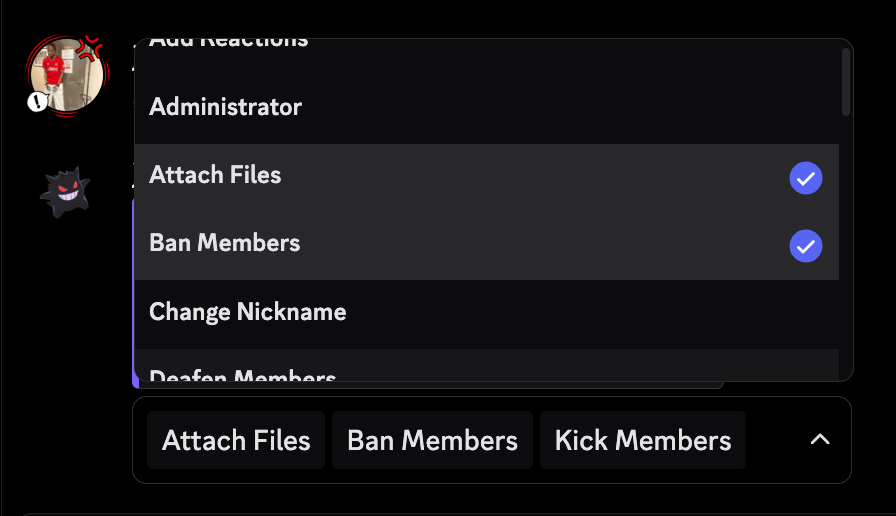
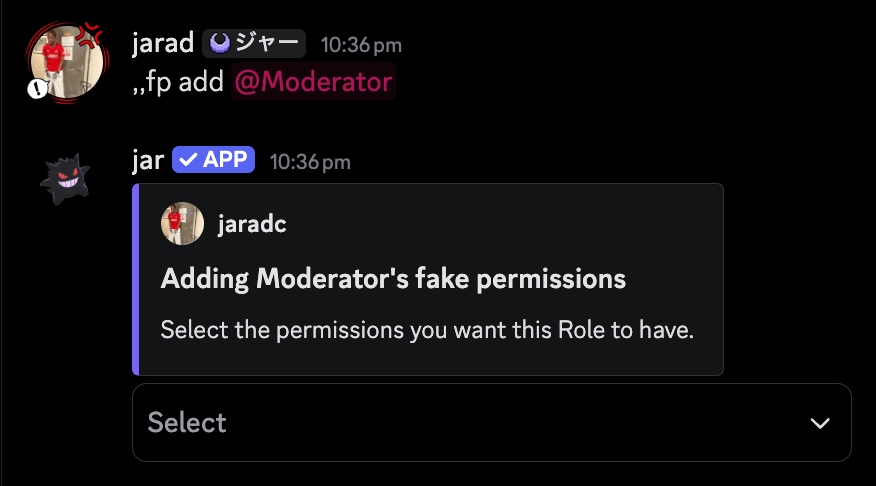 You can select multiple permissions at once.
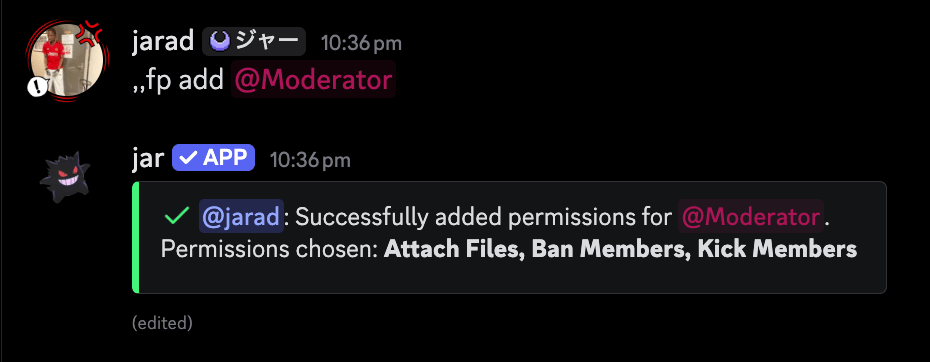
 Once you've selected the permissions you want to give, jar will confirm the addition by showing you the selected permissions.
 ## Editing a fake permission
To edit a fake permission, you'll need to run the following command:
```ruby Syntax theme={null}
fakepermissions edit
```
```ruby Example theme={null}
,,fakepermissions edit @jaradc
,,fakepermissions edit @Moderator
```
jar will then prompt you to select the permissions you want to edit.
## Editing a fake permission
To edit a fake permission, you'll need to run the following command:
```ruby Syntax theme={null}
fakepermissions edit
```
```ruby Example theme={null}
,,fakepermissions edit @jaradc
,,fakepermissions edit @Moderator
```
jar will then prompt you to select the permissions you want to edit.
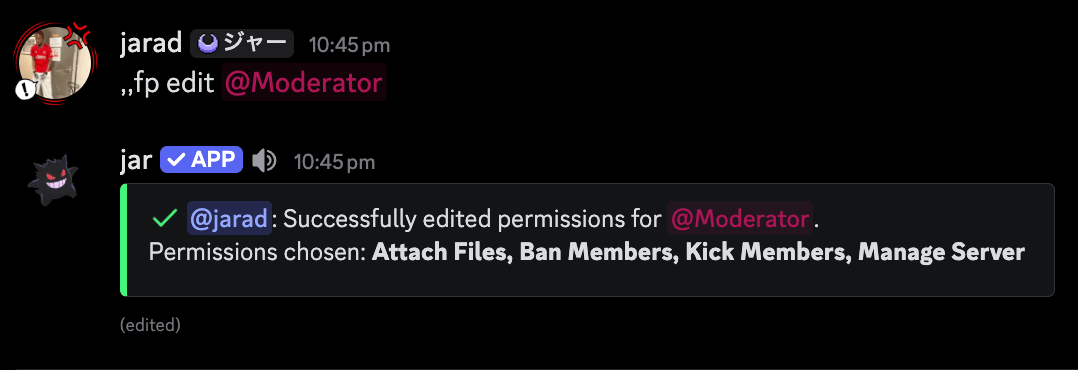
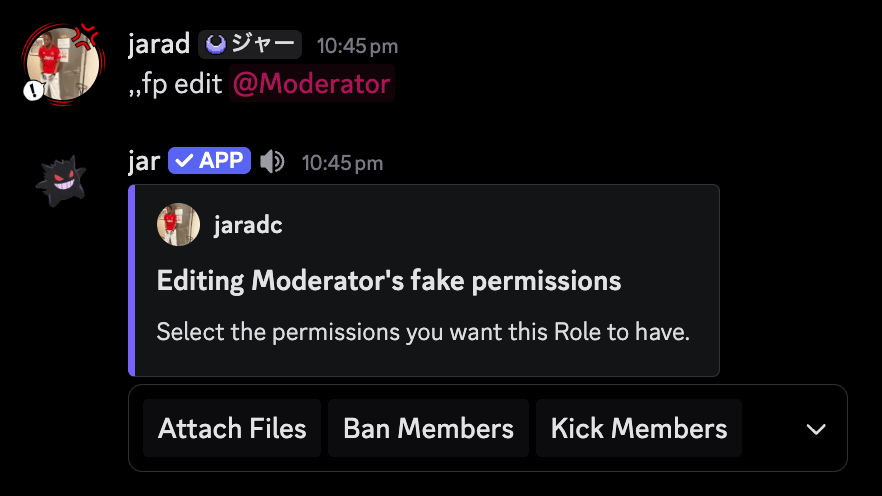 Once you've selected the permissions you want to edit, jar will confirm the changes by showing you the selected permissions.
 ## Removing a fake permission
To remove a fake permission, you'll need to run the following command:
```ruby Syntax theme={null}
fakepermissions remove
```
```ruby Example theme={null}
,,fakepermissions remove @jaradc
,,fakepermissions remove @Moderator
```
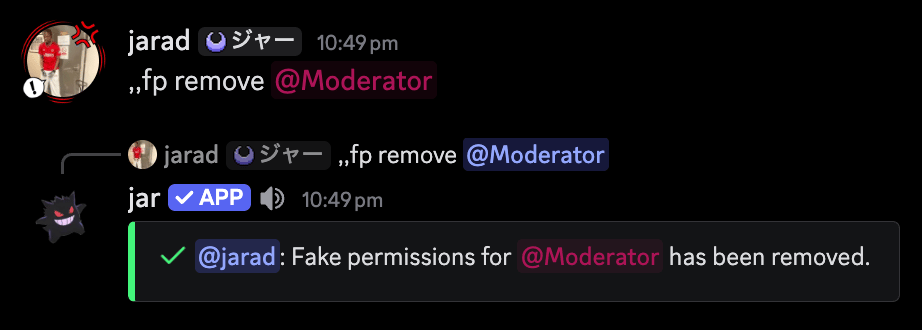
jar will then confirm the removal by showing you the removed permissions.
## Removing a fake permission
To remove a fake permission, you'll need to run the following command:
```ruby Syntax theme={null}
fakepermissions remove
```
```ruby Example theme={null}
,,fakepermissions remove @jaradc
,,fakepermissions remove @Moderator
```
jar will then confirm the removal by showing you the removed permissions.
 ## Removing all fake permissions
To remove all fake permissions for the server, you can use the following command:
```ruby Syntax theme={null}
fakepermissions reset
```
```ruby Example theme={null}
,,fakepermissions reset
```
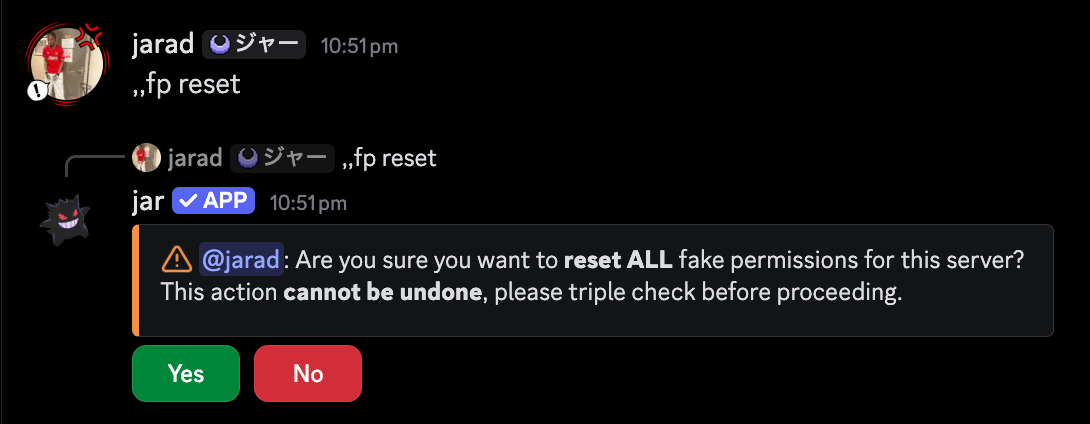
jar will prompt you to confirm the removal of all fake permissions.
## Removing all fake permissions
To remove all fake permissions for the server, you can use the following command:
```ruby Syntax theme={null}
fakepermissions reset
```
```ruby Example theme={null}
,,fakepermissions reset
```
jar will prompt you to confirm the removal of all fake permissions.
 ## Viewing all fake permissions
To view all fake permissions in the server, you can use the following command:
```ruby Syntax theme={null}
fakepermissions list
```
```ruby Example theme={null}
,,fakepermissions list
```
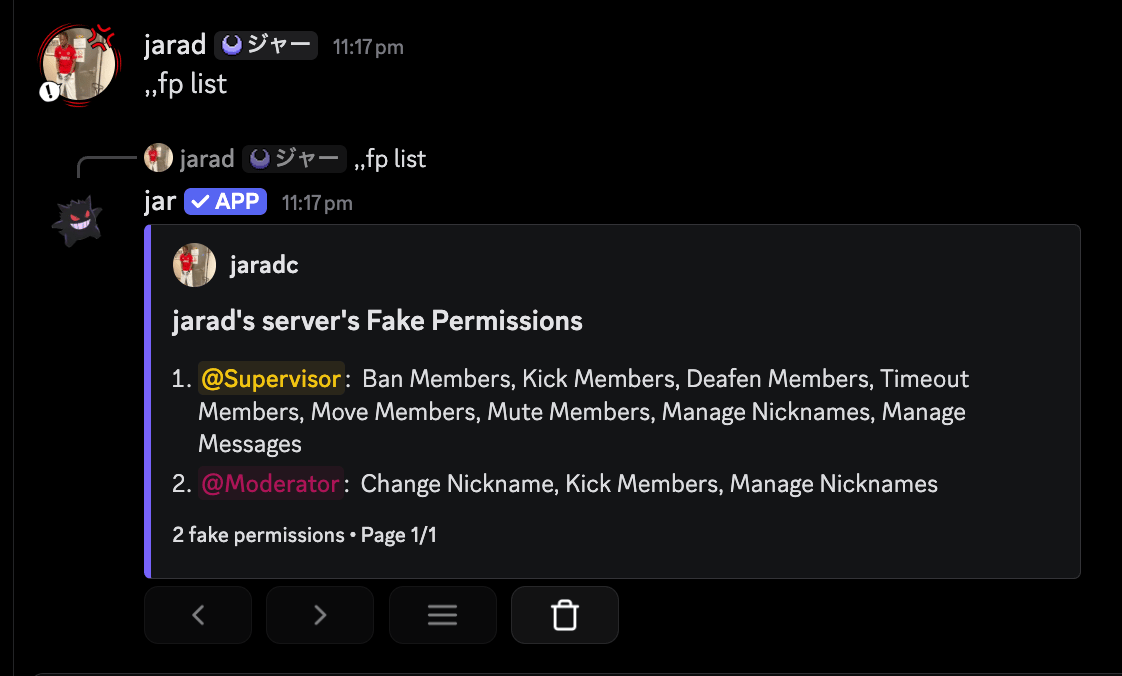
jar will display a list of all users and roles, along with the permissions they have been granted.
## Viewing all fake permissions
To view all fake permissions in the server, you can use the following command:
```ruby Syntax theme={null}
fakepermissions list
```
```ruby Example theme={null}
,,fakepermissions list
```
jar will display a list of all users and roles, along with the permissions they have been granted.