> ## Documentation Index
> Fetch the complete documentation index at: https://docs.jar.rip/llms.txt
> Use this file to discover all available pages before exploring further.
# AutoPost
> Set up automatic posters for your server.
## Introduction
jar's extensive userbase and collection of content can be used to automatically post them to your server channels. This guide will show you how to set up autoposters for various content types.
## Setting up an autoposter
To set up an autoposter, you'll need to pick which content type you want to post and the channel you want to post it to.
Username and vanity autoposters are **currently disabled**, due to instability issues. Please refer to the `/lookup` and `/vanities` commands for the time being.
Type in this command to bring up the options and the channel you want to post to.
```python theme={null}
/autopost setup [option] [channel]
```
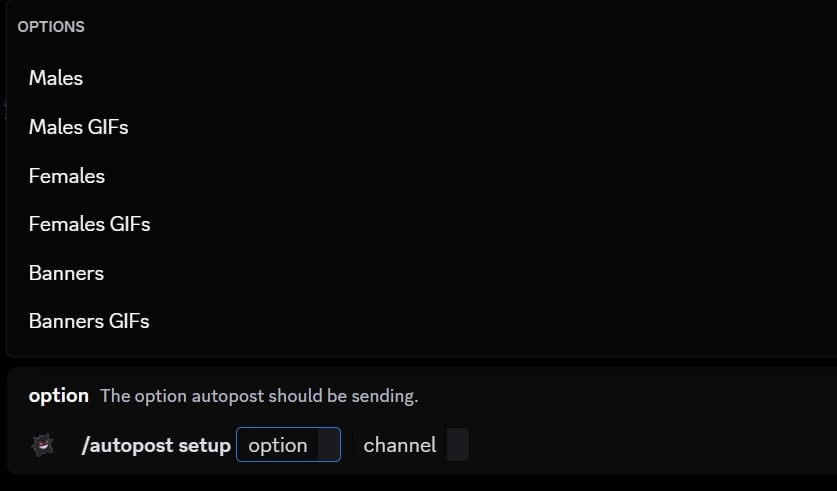
You'll need to select what you want to post...
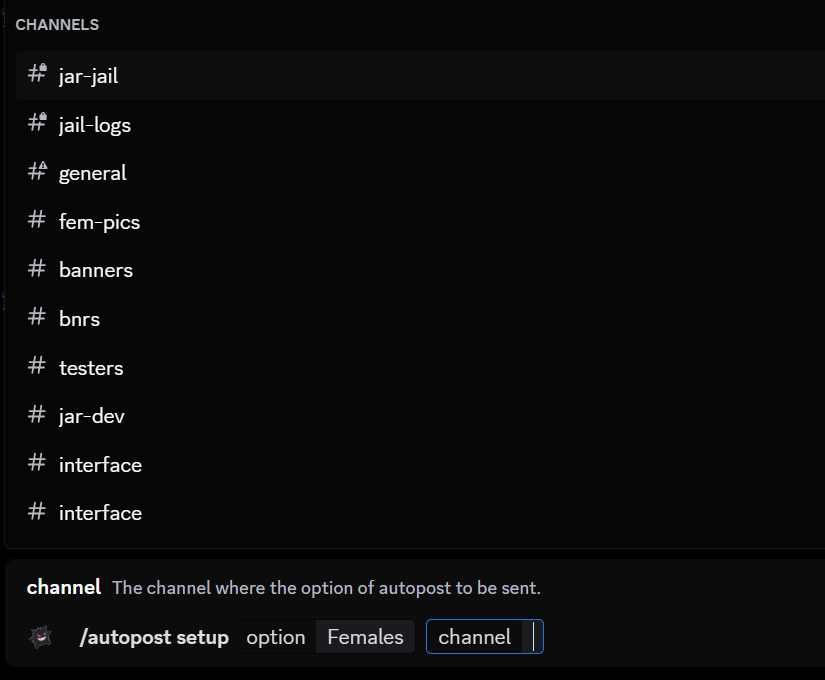
 ...and the channel you want to post to.
 After selecting both options and confirming, you should see this message.
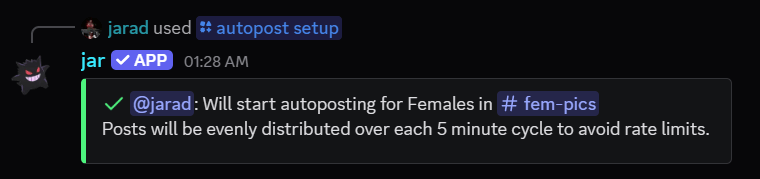 Please read the success message carefully, because it tells you **when it will post next**.
## Removing an autoposter
To remove an autoposter, type in this command to bring up the option that you want to remove.
```python theme={null}
/autopost remove [option]
```
You'll need to select the content type you want to remove.
Please read the success message carefully, because it tells you **when it will post next**.
## Removing an autoposter
To remove an autoposter, type in this command to bring up the option that you want to remove.
```python theme={null}
/autopost remove [option]
```
You'll need to select the content type you want to remove.
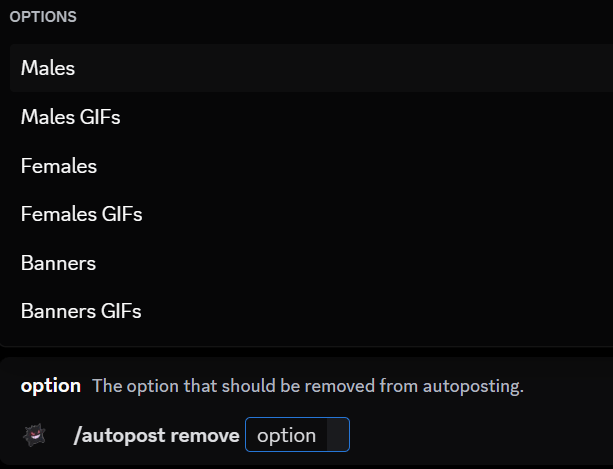 You should see this confirmation message after doing so.
 ## Checking autoposter channels
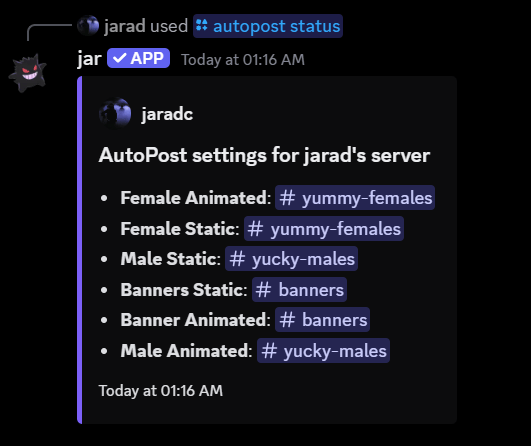
To check the channels that have autoposters set up, type in this command.
```python theme={null}
/autopost status
```
## Checking autoposter channels
To check the channels that have autoposters set up, type in this command.
```python theme={null}
/autopost status
```
 ## Resetting all autoposters
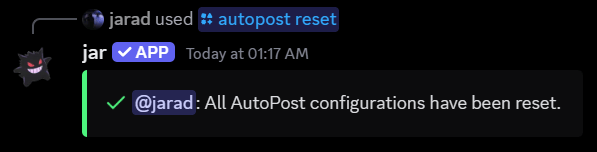
To reset all autoposters, type in this command.
```python theme={null}
/autopost reset
```
You should see this confirmation message after doing so...
## Resetting all autoposters
To reset all autoposters, type in this command.
```python theme={null}
/autopost reset
```
You should see this confirmation message after doing so...