> ## Documentation Index
> Fetch the complete documentation index at: https://docs.jar.rip/llms.txt
> Use this file to discover all available pages before exploring further.
# Ping-on-Join
> Ghost ping users in selected channels when they join your server.
## Introduction
jar can ghost ping (ping then delete) users in selected channels when they join your server. This can be useful for directing users to important channels.
## Setting up ping-on-join
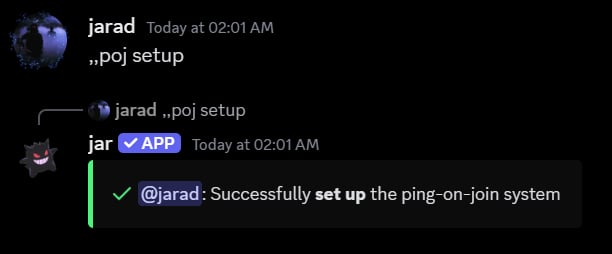
To setup a ping-on-join, simply use the `pingonjoin setup` command.
```ruby Syntax theme={null}
pingonjoin setup
```
```ruby Example theme={null}
,,pingonjoin setup
```
You should see a confirmation message after running the command.
 After the setup is complete, the first step is to **enable the ping-on-join system**.
This isn't enabled by default to prevent accidental pings.
## Toggling the ping-on-join system
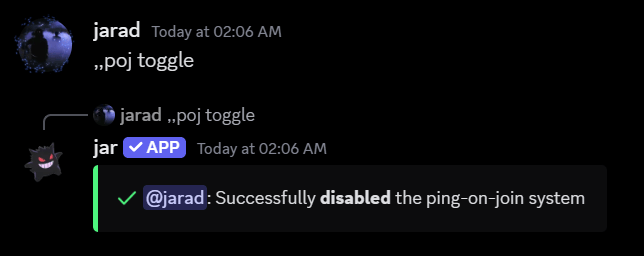
To toggle the ping-on-join system, simply use the `pingonjoin toggle` command.
You should see a confirmation message after running the command.
```ruby Syntax theme={null}
pingonjoin toggle
```
```ruby Example theme={null}
,,pingonjoin toggle
```
After the setup is complete, the first step is to **enable the ping-on-join system**.
This isn't enabled by default to prevent accidental pings.
## Toggling the ping-on-join system
To toggle the ping-on-join system, simply use the `pingonjoin toggle` command.
You should see a confirmation message after running the command.
```ruby Syntax theme={null}
pingonjoin toggle
```
```ruby Example theme={null}
,,pingonjoin toggle
```

 ## Viewing the ping-on-join settings
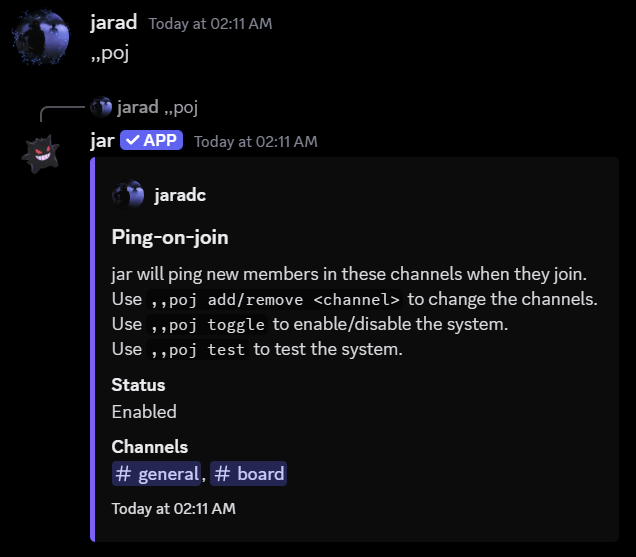
To view the ping-on-join settings, simply use the `pingonjoin` command. This will show you all the channels you've set up to ping.
```ruby Syntax theme={null}
pingonjoin
```
```ruby Example theme={null}
,,pingonjoin
```
## Viewing the ping-on-join settings
To view the ping-on-join settings, simply use the `pingonjoin` command. This will show you all the channels you've set up to ping.
```ruby Syntax theme={null}
pingonjoin
```
```ruby Example theme={null}
,,pingonjoin
```
 ## Adding a channel to ping
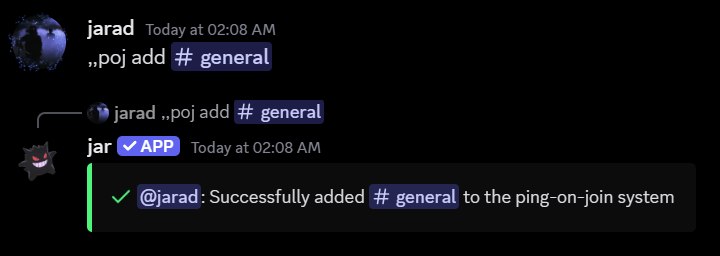
To add a channel to ping, simply use the `pingonjoin add` command, followed by the channel you'd like to ping.
```ruby Syntax theme={null}
pingonjoin add
```
```ruby Example theme={null}
,,pingonjoin add #general
```
You should see a confirmation message after running the command.
## Adding a channel to ping
To add a channel to ping, simply use the `pingonjoin add` command, followed by the channel you'd like to ping.
```ruby Syntax theme={null}
pingonjoin add
```
```ruby Example theme={null}
,,pingonjoin add #general
```
You should see a confirmation message after running the command.
 ## Testing the ping-on-join system
To test the ping-on-join system, simply use the `pingonjoin test` command.
This will ping you in all the channels you've set up, and delete its message after 5 seconds.
jar will react to your message once this process is complete.
```ruby Syntax theme={null}
pingonjoin test
```
```ruby Example theme={null}
,,pingonjoin test
```
## Testing the ping-on-join system
To test the ping-on-join system, simply use the `pingonjoin test` command.
This will ping you in all the channels you've set up, and delete its message after 5 seconds.
jar will react to your message once this process is complete.
```ruby Syntax theme={null}
pingonjoin test
```
```ruby Example theme={null}
,,pingonjoin test
```
 ## Removing a channel to ping
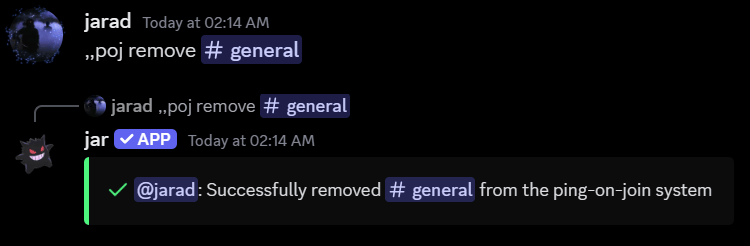
To remove a channel to ping, simply use the `pingonjoin remove` command, followed by the channel you'd like to remove.
```ruby Syntax theme={null}
pingonjoin remove
```
```ruby Example theme={null}
,,pingonjoin remove #general
```
You should see a confirmation message after running the command.
## Removing a channel to ping
To remove a channel to ping, simply use the `pingonjoin remove` command, followed by the channel you'd like to remove.
```ruby Syntax theme={null}
pingonjoin remove
```
```ruby Example theme={null}
,,pingonjoin remove #general
```
You should see a confirmation message after running the command.
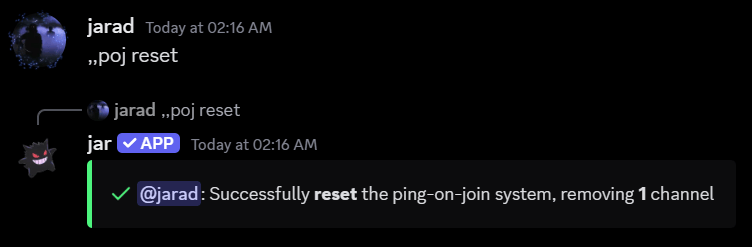
 ## Resetting the ping-on-join system
To reset the ping-on-join system, simply use the `pingonjoin reset` command. This will remove all the channels you've set up to ping.
```ruby Syntax theme={null}
pingonjoin reset
```
```ruby Example theme={null}
,,pingonjoin reset
```
## Resetting the ping-on-join system
To reset the ping-on-join system, simply use the `pingonjoin reset` command. This will remove all the channels you've set up to ping.
```ruby Syntax theme={null}
pingonjoin reset
```
```ruby Example theme={null}
,,pingonjoin reset
```